EMMGR.DEV
ProjectorCal
ProjectorCal icon

ProjectorCal

For Mac · display calibration

ProjectorCal shows full-screen test patterns on a projector, TV or monitor connected to the Mac, while the control window stays on the main display. A step-by-step assistant, a signal diagnosis, a troubleshooter and a record of your settings come with the 78 patterns.

FreeIn development
System
macOS 26.5 or later
Patterns
78
HDR
PQ (ST.2084) through EDR, plus an HLG ramp
Displays
Projector, TV or monitor
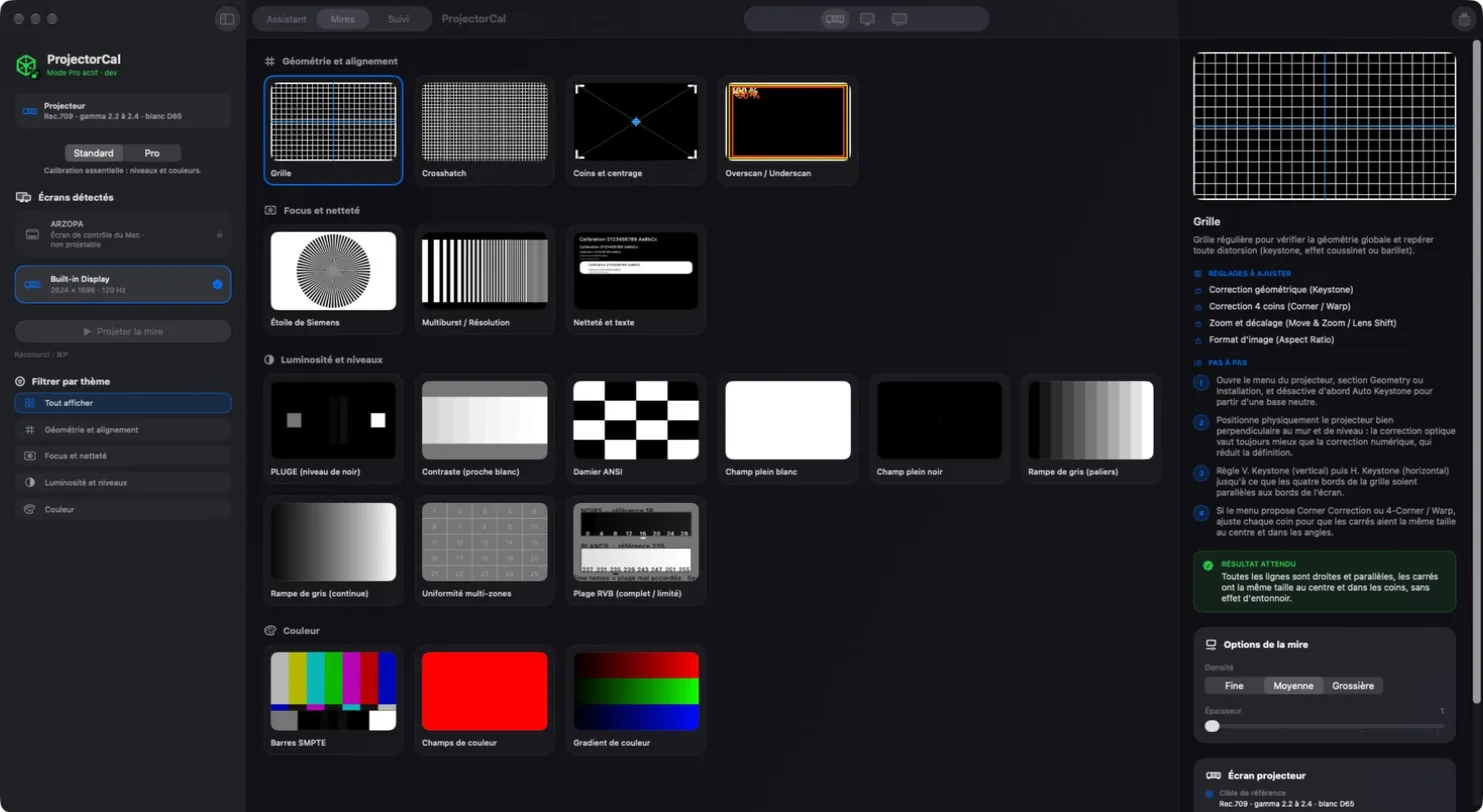
ProjectorCal pattern library with the Grid pattern selected and its sheet
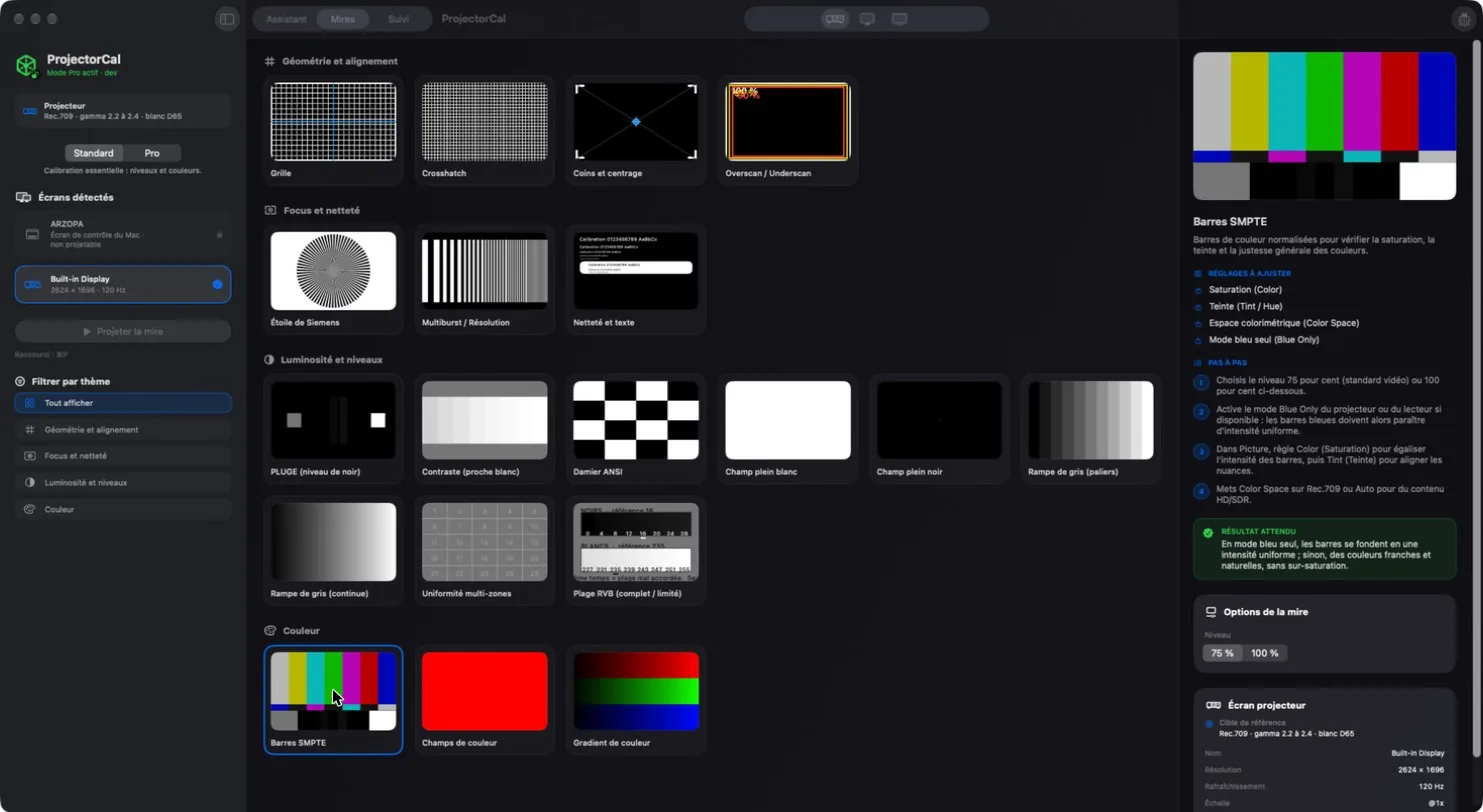
The pattern library. The selected pattern has its own sheet on the right: what to adjust, step by step, and the expected result. The app interface is in French in these screenshots.
The patterns

Every pattern, sorted by what it adjusts

Patterns are grouped by family: geometry and alignment, focus, brightness and levels, color, motion, HDR and tools. Select one and its sheet explains which settings to look for in your device’s menu, with their usual names (Saturation or Color, Tint or Hue, Color Space), the steps to follow, and what you should see when it is right.

Many patterns have options in the same panel: 75 or 100 percent level for color bars, fine, medium or coarse lines for a grid. The display type chosen in the toolbar (projector, Mac display or TV) decides which patterns are shown.

  • All 78 patterns, including HDR, motion and advanced patterns
  • Filter by family in the sidebar
SMPTE color bars selected, with settings to adjust, steps and expected result
Pro mode

The full library, HDR included

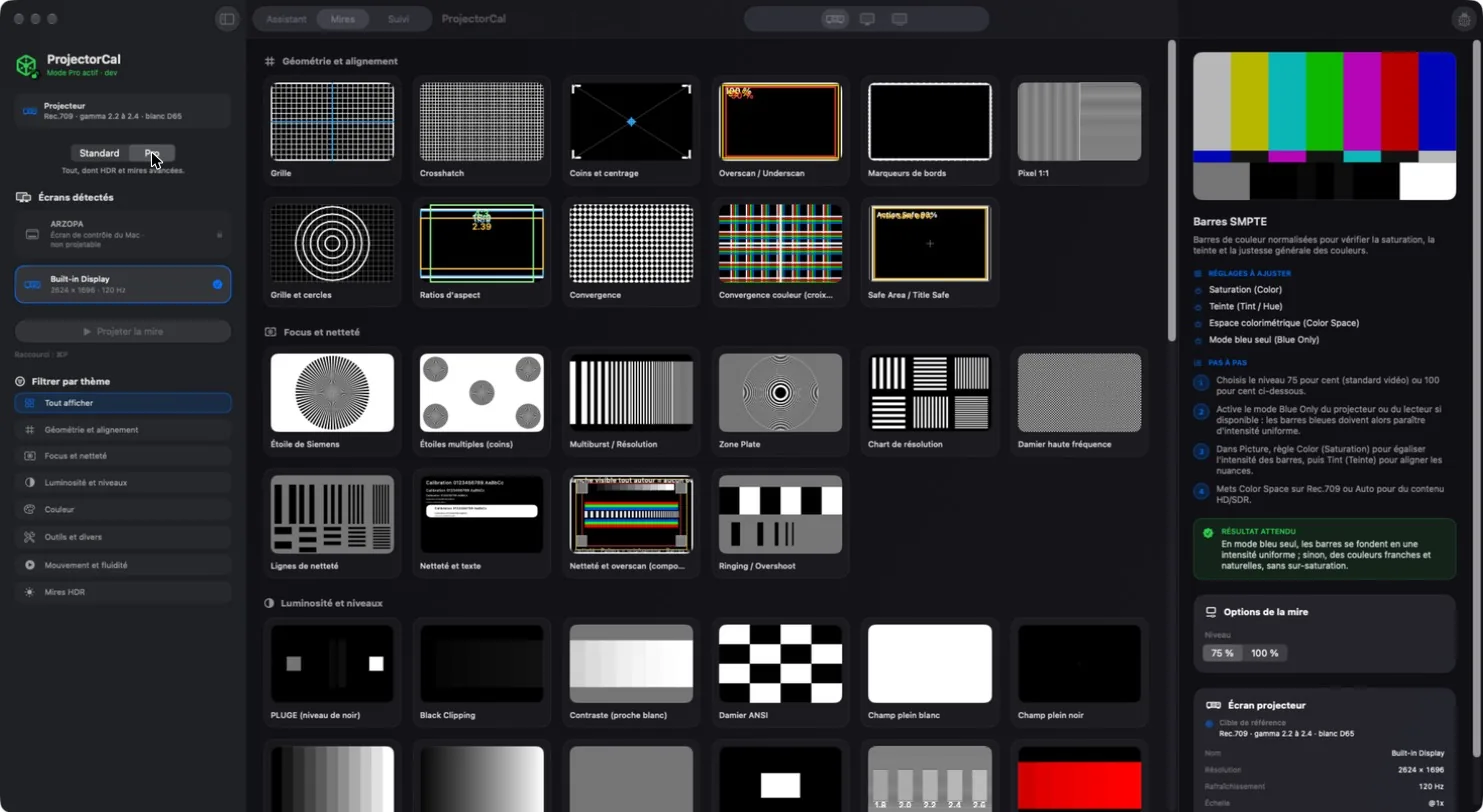
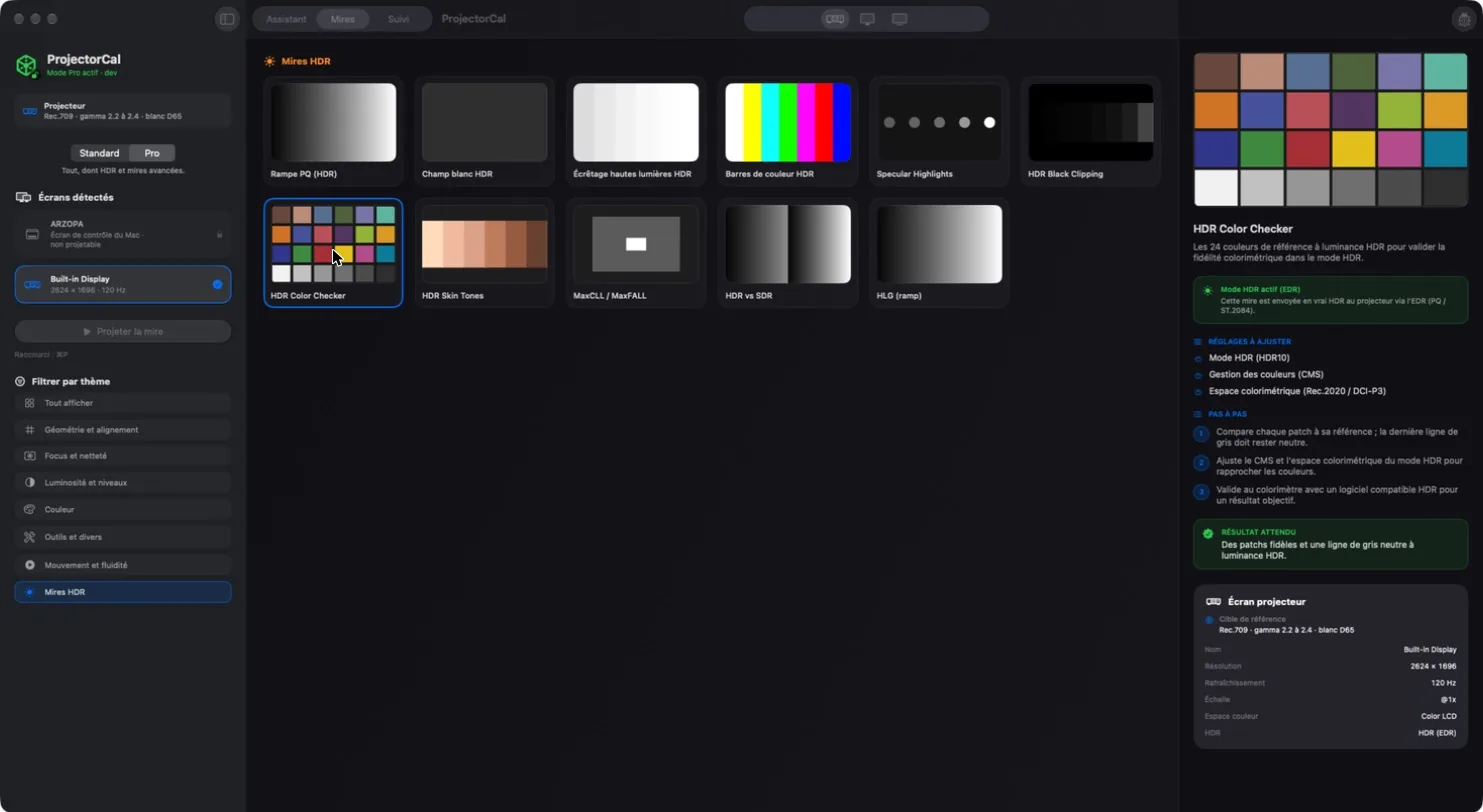
In Pro mode, the library adds edge markers, pixel 1:1, convergence, safe areas, zone plates, ringing, motion and HDR patterns. HDR patterns are sent in true HDR to the display through EDR, encoded in PQ (ST.2084); the sheet says so in a green banner.

Pro mode: the full pattern library
HDR Color Checker with the active HDR mode banner
The library in numbers

78 patterns in 7 families

Geometry and alignment11

GridCrosshatchCorners and centeringOverscanEdge markersPixel 1:1Grid and circlesAspect ratiosConvergenceColor convergenceSafe Area

Focus10

Siemens starMultiple starsMultiburstZone PlateResolution chartHigh-frequency checkerboardSharpness linesSharpness and textSharpness and overscanRinging

Brightness and levels17

PLUGEBlack ClippingContrastANSI checkerboardWhite fieldBlack fieldStepped gray rampContinuous rampGray fieldsAPL windowGammaNear-blackRGB ClippingBanding 8/10 bitUniformity 5 × 5StepsRGB range

Color15

SMPTE barsEBU barsColor fieldsGradientHue sweepSaturation sweepColorChecker 24Skin tonesRGB balanceGranger RainbowChroma 4:2:0Color spaceChroma BurstsGamut BoundaryReference image

Motion10

Horizontal scrollVertical scrollMotion blur24p cadenceMoving Zone PlateRainbow EffectScrolling textAnti burn-inMotion resolutionFlicker

HDR11

PQ rampHDR white fieldHighlight clippingHDR barsSpecular HighlightsHDR Black ClippingHDR Color CheckerHDR Skin TonesMaxCLL / MaxFALLHDR vs SDRHLG

Tools4

Warm-upDisplay identificationVideo noiseSubpixels and dead pixels
The walkthrough

From preparation to verification, one step at a time

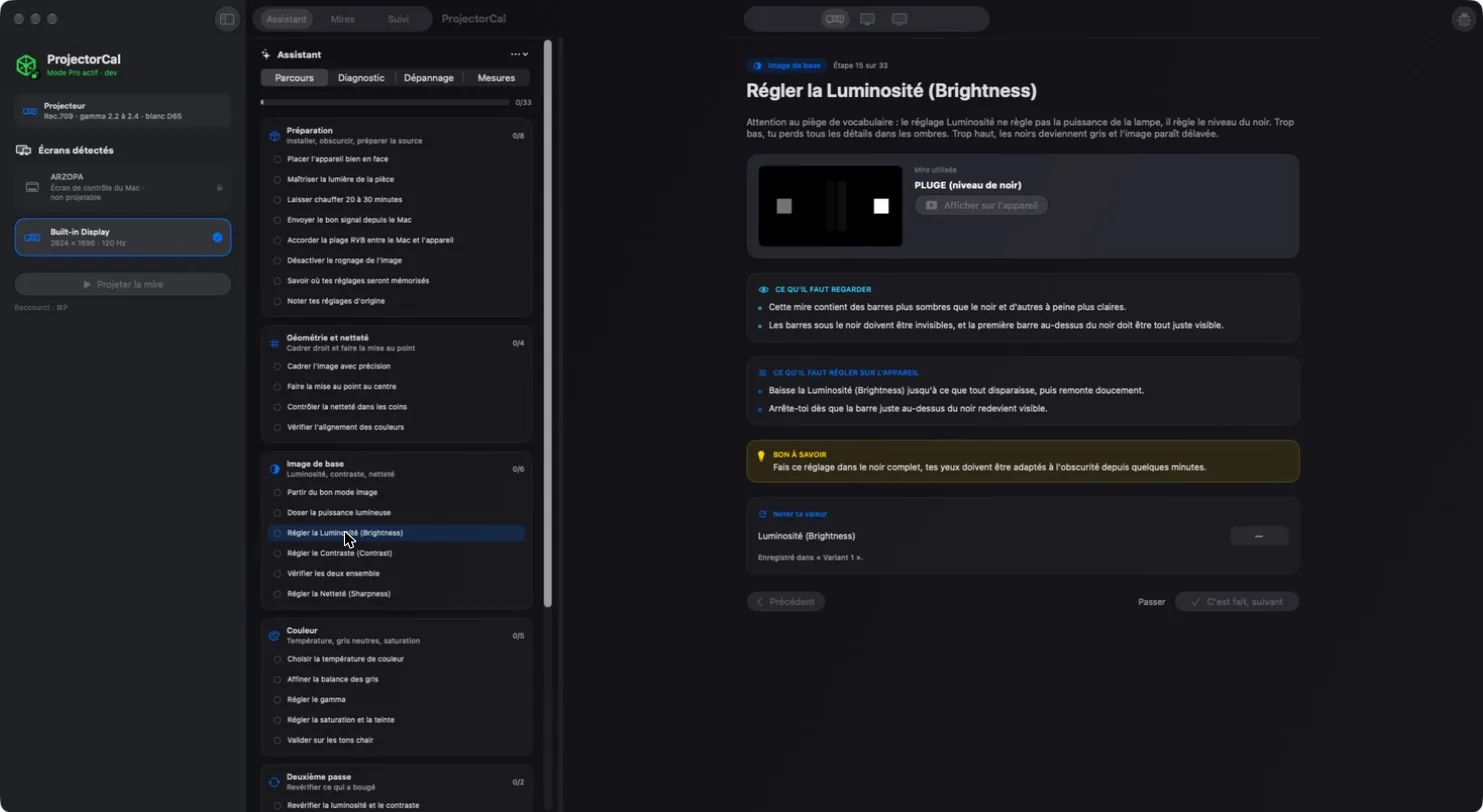
The assistant walks you through the whole calibration in 7 phases and 33 steps: preparation (place the projector, warm it up for 20 to 30 minutes, turn off the lights, pick the right picture mode), geometry and focus, base image, color, a second pass, HDR, and verification. Each phase shows its progress.

Each step says what to look at, what to adjust on the device, and a tip from experience. You enter the value you settled on, then move to the next step or skip it. Progress is kept between launches.

  • Show the pattern on the device from the step itself
  • The value you enter is saved in the current session and variant
Walkthrough step: adjust Brightness with the PLUGE pattern
Signal diagnosis

What the Mac actually sends to the display

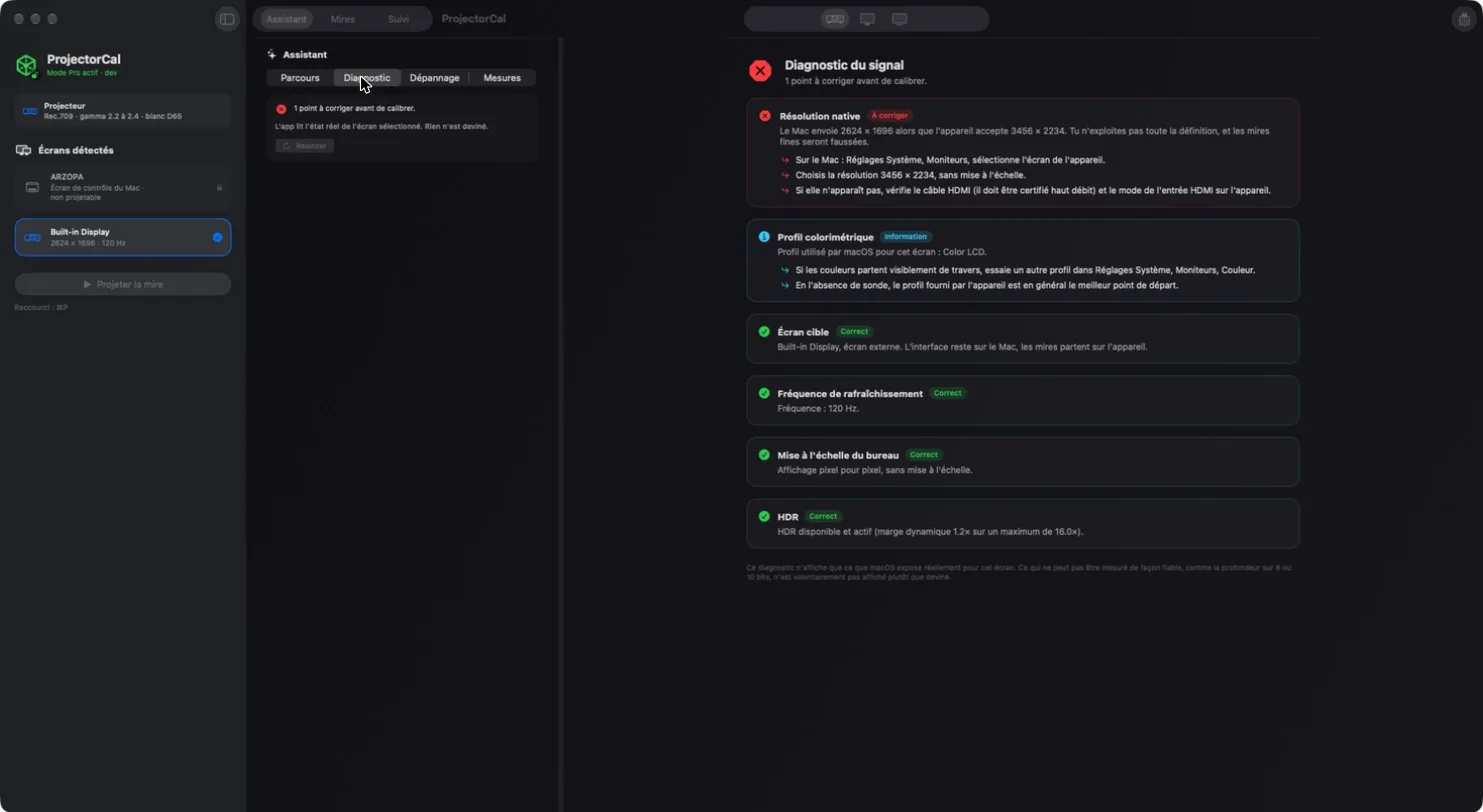
Before calibrating, ProjectorCal checks the signal: native resolution, color profile, target display, refresh rate, desktop scaling and HDR. When something is wrong, it says what and how to fix it. In the screenshot, the Mac sends 2624 × 1696 to a display whose native resolution is 3456 × 2234, and the diagnosis gives the three ways to fix it.

Signal diagnosis: native resolution to fix, profile, display, refresh rate, scaling, HDR
Troubleshooting

Start from what you see

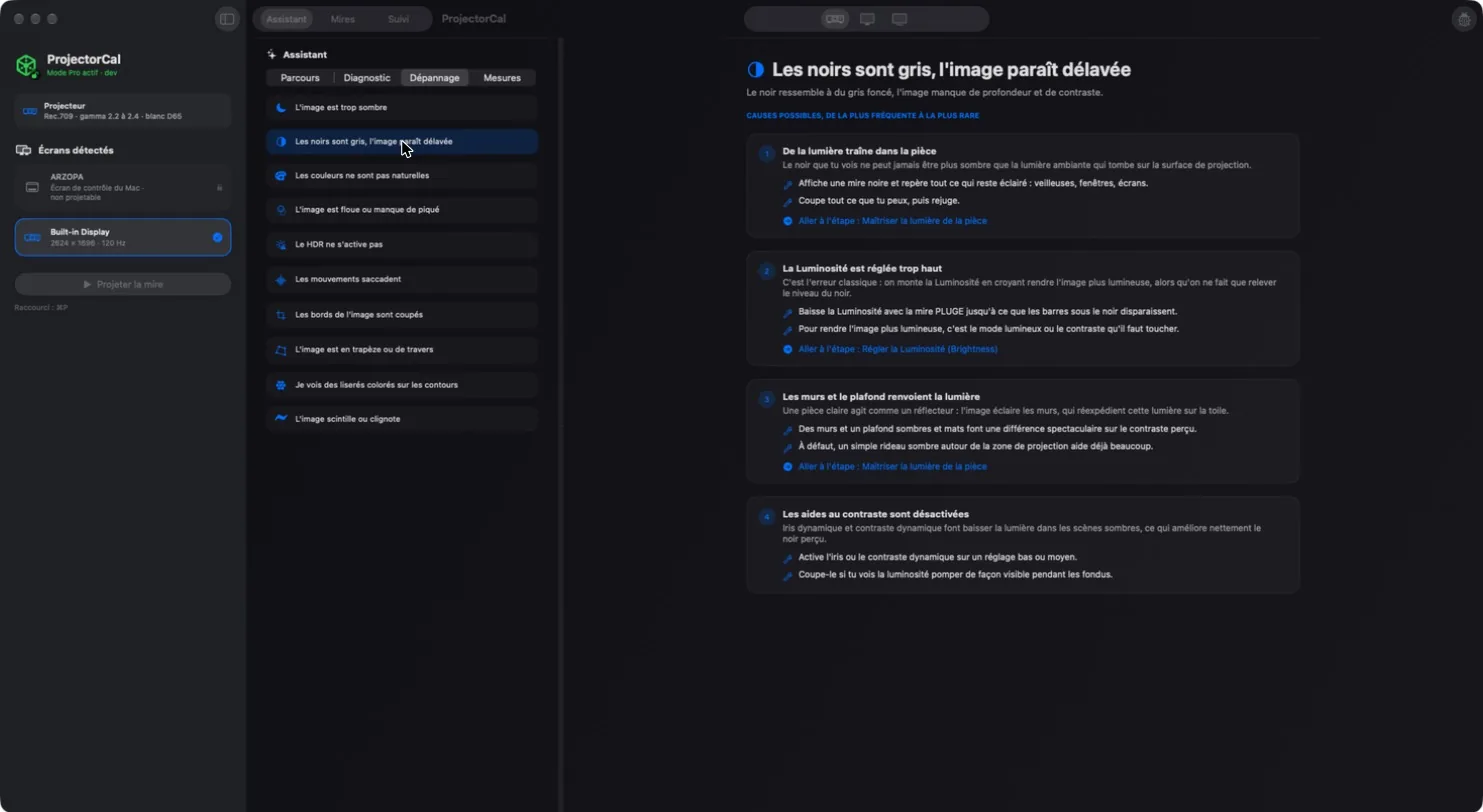
Pick one of 10 symptoms: blacks look gray, the image is too dark, colors look wrong, the image is soft, HDR does not turn on, motion judders, edges are cut off, the image is keystoned or crooked, colored fringes, the image flickers. ProjectorCal lists the possible causes, the most frequent first, each with what to do and a link to the step of the walkthrough that fixes it.

Troubleshooting: blacks look gray, with four causes and their fixes
Tracking

Keep your settings and compare them

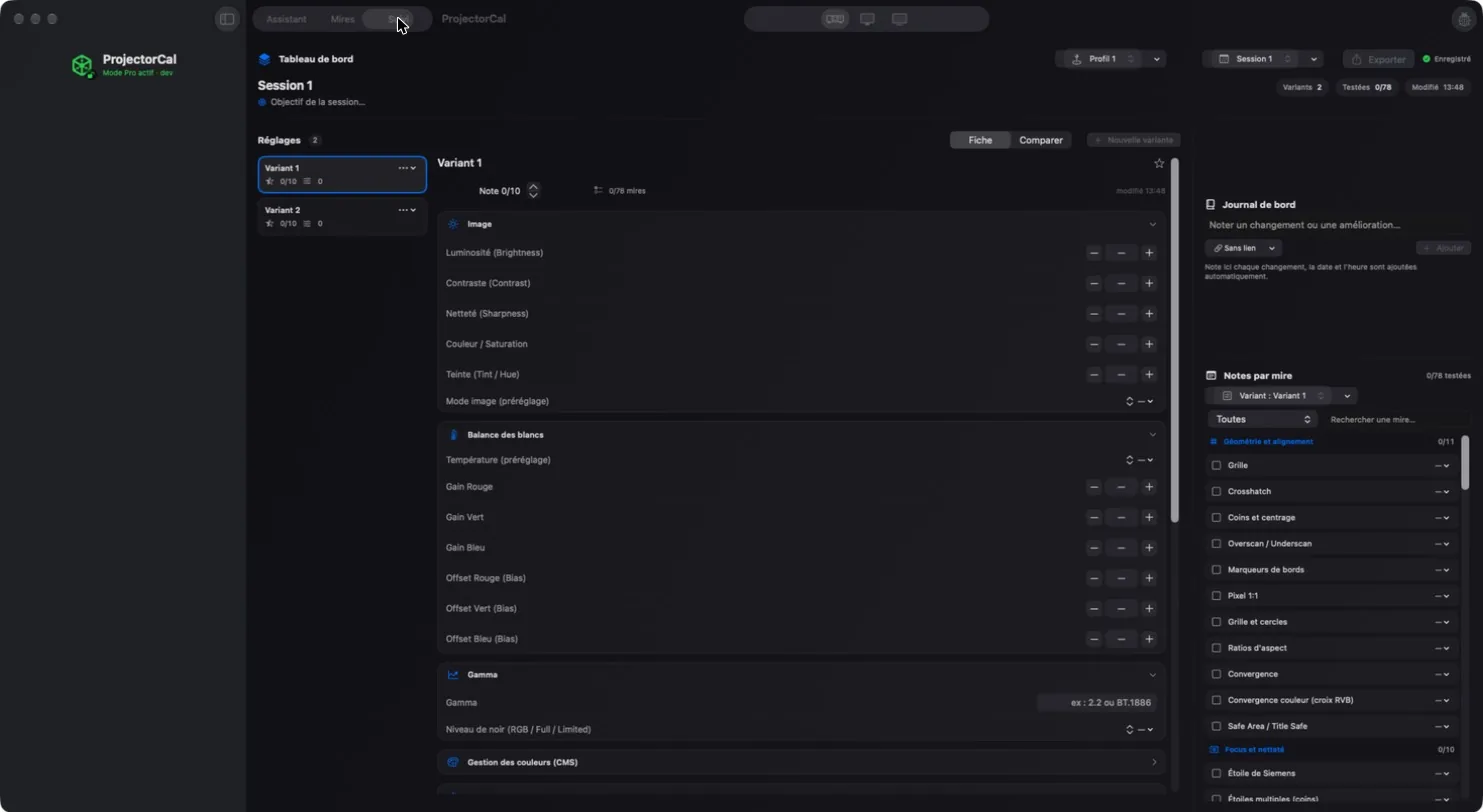
Each session holds variants. For each one, enter your settings in a form modeled on the device menu: picture (brightness, contrast, sharpness, color, tint, picture mode), white balance (color temperature, red, green and blue gains and offsets), gamma, color management. Rate the variant out of 10, then compare two variants side by side with the differences highlighted.

A logbook keeps your notes over time, and each pattern has its own note.

  • Profiles, sessions and variants
  • Export a session as JSON
  • ⌘P project or stop, ⌘] and ⌘[ next and previous pattern, ⌘F freeze
Dashboard: session, variants, settings form, logbook and notes per pattern
Measurements

If you own a probe

Without a probe, color calibration stays a judgment by eye. With one, measure a gray scale with your usual software, then import the file: ProjectorCal tells you which setting to correct and in which direction. Accepted formats: CGATS .ti3 files from DisplayCAL or ArgyllCMS, exports from HCFR, and CSV files with a level column plus XYZ or xyY values. The app does not drive the probe itself.

Privacy

Everything stays on the Mac: your sessions are saved as JSON in the app’s folder. Sandboxed app, no account.

Requirements

  • macOS 26.5 or later
  • A second display: projector, TV or monitor
  • Interface in French for now; pattern names are translated on this page

Availability

In development. Free, with all 78 patterns.

Other apps