EMMGR.DEV
KVM
KVM icon

KVM

For iPhone, iPad and Mac

KVM shows the screen of a computer and lets you control it with your fingers, a keyboard or a mouse, through a KVM-over-IP device plugged into that computer, such as a NanoKVM. Nothing to install on the controlled computer: the device films its video output and acts as a USB keyboard and mouse, so it works even when the computer is asleep, locked or still starting up.

Being prepared for the App Store
System
iOS 26 and macOS 26 or later
Devices
iPhone, iPad and Mac, one purchase
Video
H.264 up to 4K, MJPEG as fallback
Price
Free at home, KVM Pro €14.99 once
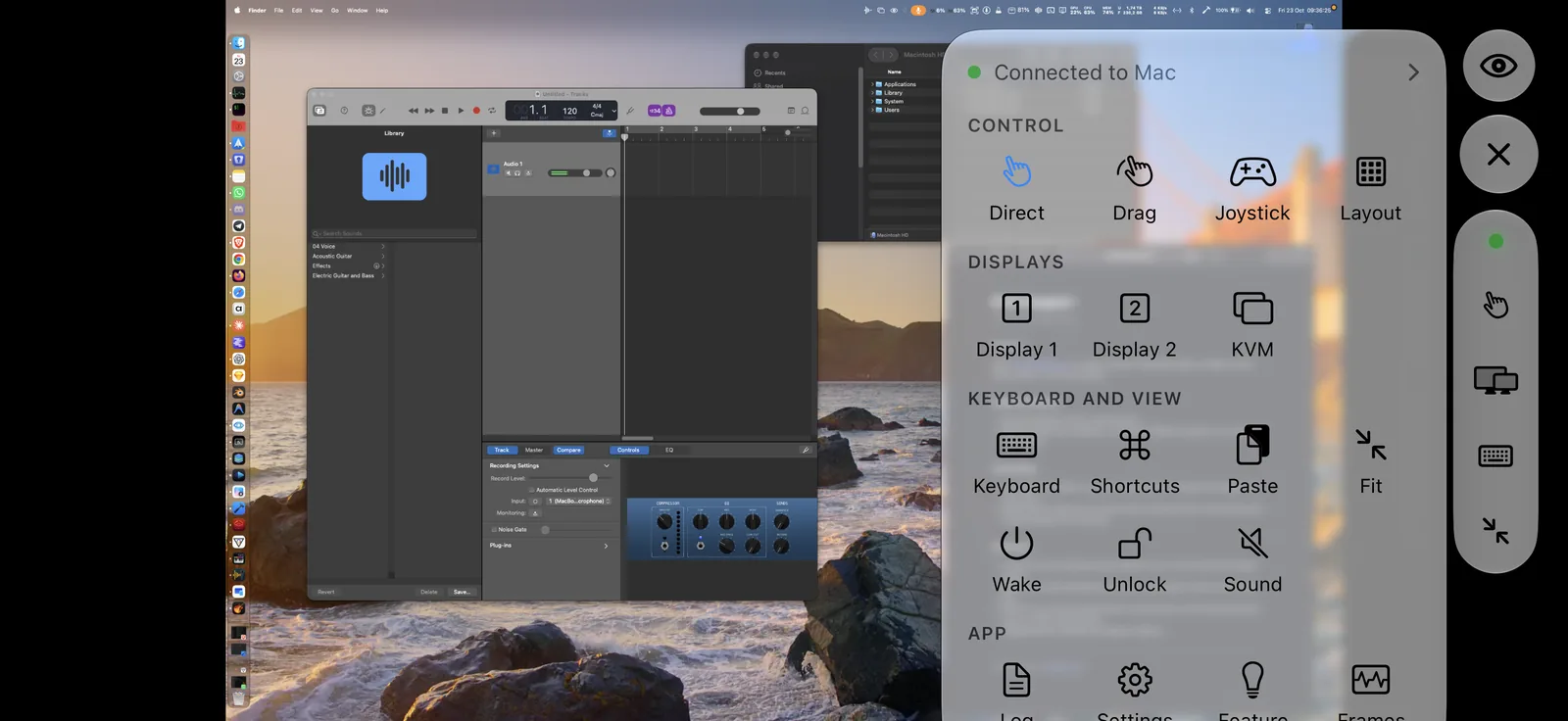
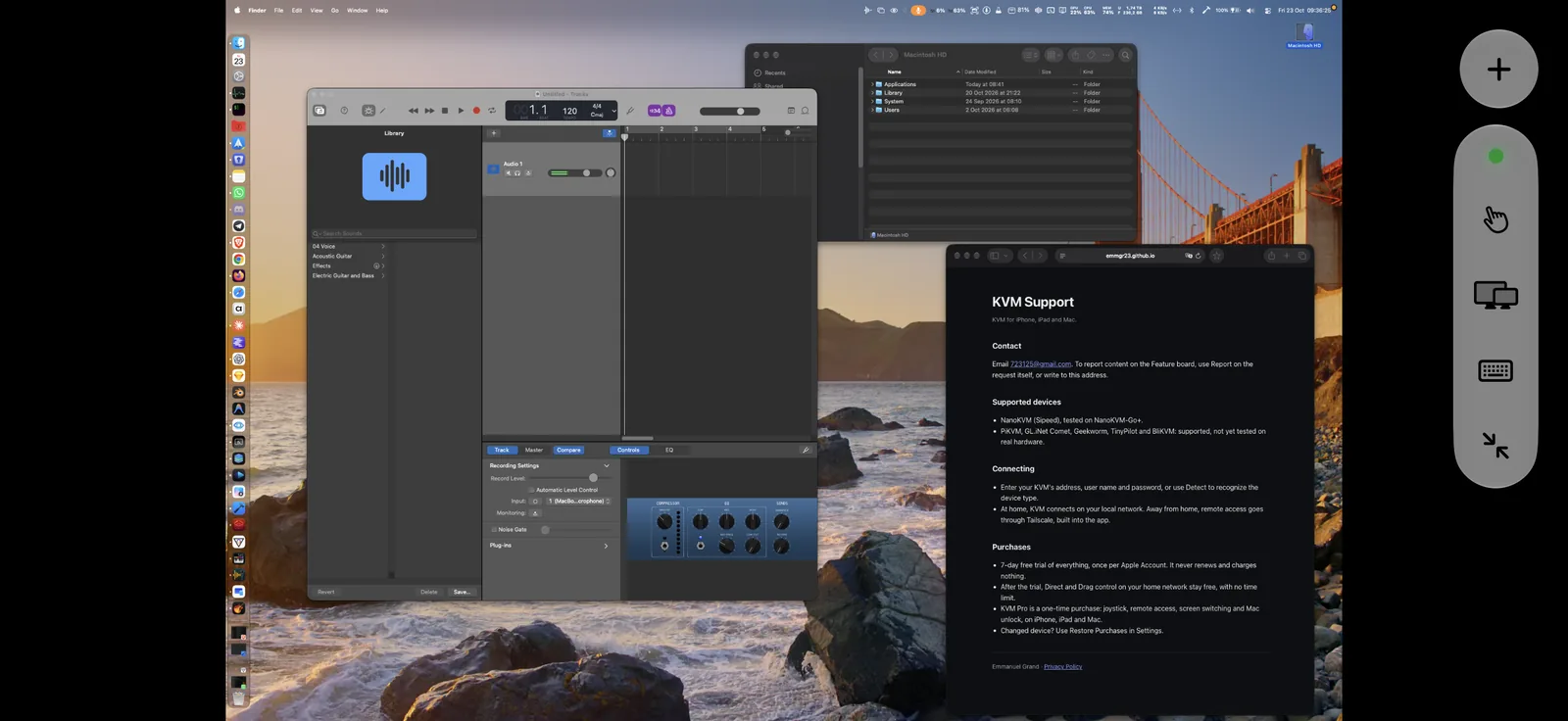
KVM on iPhone in landscape, showing a Mac desktop in Direct mode
An iPhone controlling a Mac in Direct mode.
The picture

The whole screen of the computer, live

KVM opens the device’s H.264 stream directly, the lowest latency it offers, and shows each frame as soon as it arrives, with no queue. If no image comes within 4 seconds, it falls back to MJPEG. Measured on a NanoKVM-Go+: a 4K picture on screen 0.3 s after connecting, at 30 frames per second.

Because the device captures the video output, you see everything the computer shows, from the login screen to a frozen app or the startup screen.

  • Pinch to zoom from 1× to 8×, the zoomed view follows the cursor near the edges
  • A waiting screen while the first image arrives
  • A log with Live and Today views for every connection
Touch control

Three ways to drive the cursor

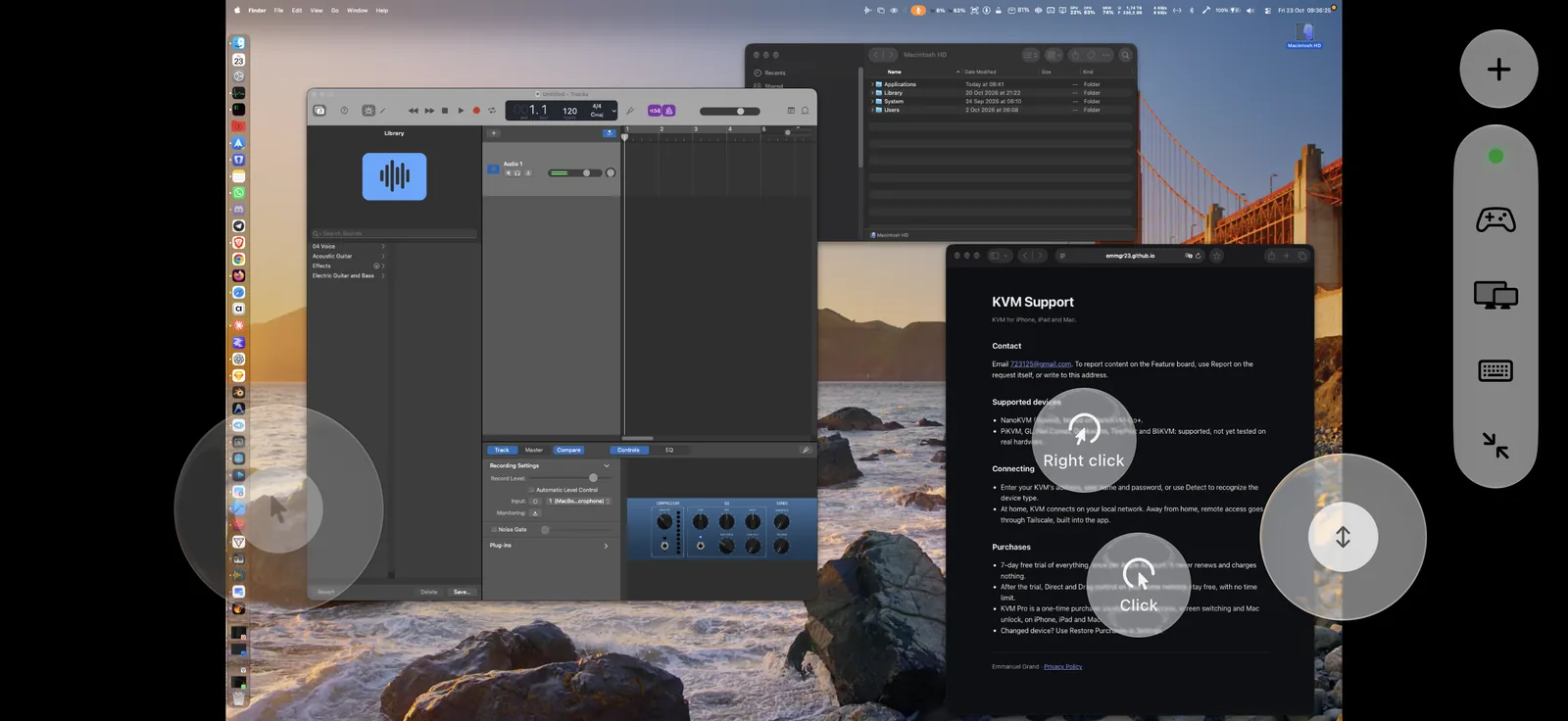
Pick the mode that suits the task. In Joystick mode, the left stick appears where your thumb lands on the left half of the screen. The full speed crosses 0.8 of the screen width per second, with a 12 % dead zone, and the right stick scrolls up to 25 notches per second.

DirectFree

The cursor follows your finger, a tap clicks. Menus, Dock and tooltips react as with a mouse.

DragFree

Dragging keeps the button pressed: select text, move a window, drag and drop.

JoystickKVM Pro

Left stick moves the cursor, right stick scrolls, click buttons next to them. Layout set by you.

GesturesAll modes

Long press or two-finger tap for a right click, two fingers to scroll, pinch to zoom up to 8×.

Your layout

Buttons where your hands are

Like in a mobile game, place each control where you want it: position, size, opacity, shown or hidden, with one layout for landscape and one for portrait. The bottom bar keeps a few favorite commands, and the + button opens a grid with all of them: modes, screens, keyboard, shortcuts, paste, fit, wake, unlock, log and settings. Any command can be moved to the bar.

Joystick mode with its sticks and buttons
The command grid
Keyboard

Every key, every shortcut

The on-screen keyboard types each character with the physical key that produces it on the computer’s layout, AZERTY or US, because the device sends real key presses. A row above it adds Esc, Tab, arrows and the ⌃ ⌥ ⌘ keys, held until the next key.

With a physical keyboard on the iPad or iPhone, every key goes to the computer, ⌘ shortcuts included; ⌃⌥⎋ gives the keyboard back to the iPad. A trackpad or mouse moves the cursor, clicks, drags and scrolls.

  • Shortcut buttons: Mission Control, Spotlight, app switcher, Esc, Force Quit, screenshot
  • Paste types the clipboard on the computer
  • Wake sends a Shift press, like a USB keyboard
Unlock

Unlock the Mac with Face ID

Optional. The Mac’s login password is kept in the Keychain of this device only, protected by Face ID or the device passcode, never synced and never written to the log. Face ID releases it and KVM types it on the lock screen, then Return.

Several displays

Choose which screen you see

The device only receives one display. With the KVM app also installed on the controlled Mac, you choose from the iPhone what that display shows: the Mac’s own desktop, or a mirror of display 1 to 4, named as on the Mac (for example “Display 2: ARZOPA”). The switch travels as a keyboard shortcut through the device, so it works remotely too, and a small helper keeps it available even when the app is quit.

Away from home

Tailscale built in

At home, KVM connects over the local network. Away from home, it goes through Tailscale, built into the app: no Tailscale app or VPN to install. It tries the local address for 3 seconds, then the Tailscale address, which it can read from the device itself.

  • The self-signed certificate of the device is pinned at first contact, then checked on every connection
  • Settings, device and layout sync between your devices through iCloud
On the Mac

A window on the other computer

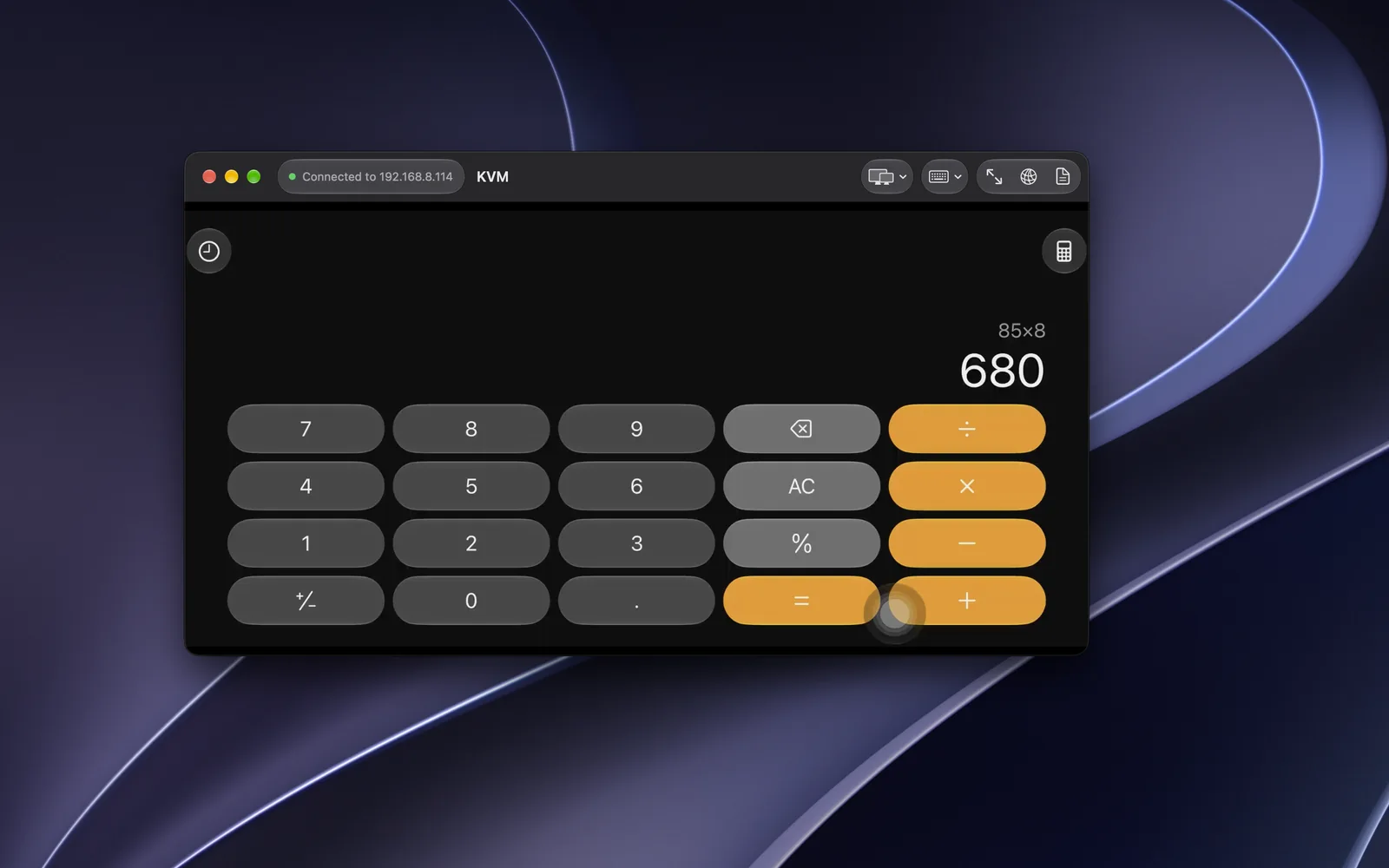
The Mac app shows the controlled computer in a window. The point under your mouse becomes the cursor position on the other computer, and the keyboard sends every press and release once you click in the picture. Zoom with a trackpad pinch or ⌘ and the scroll wheel, or ⌘+ and ⌘−.

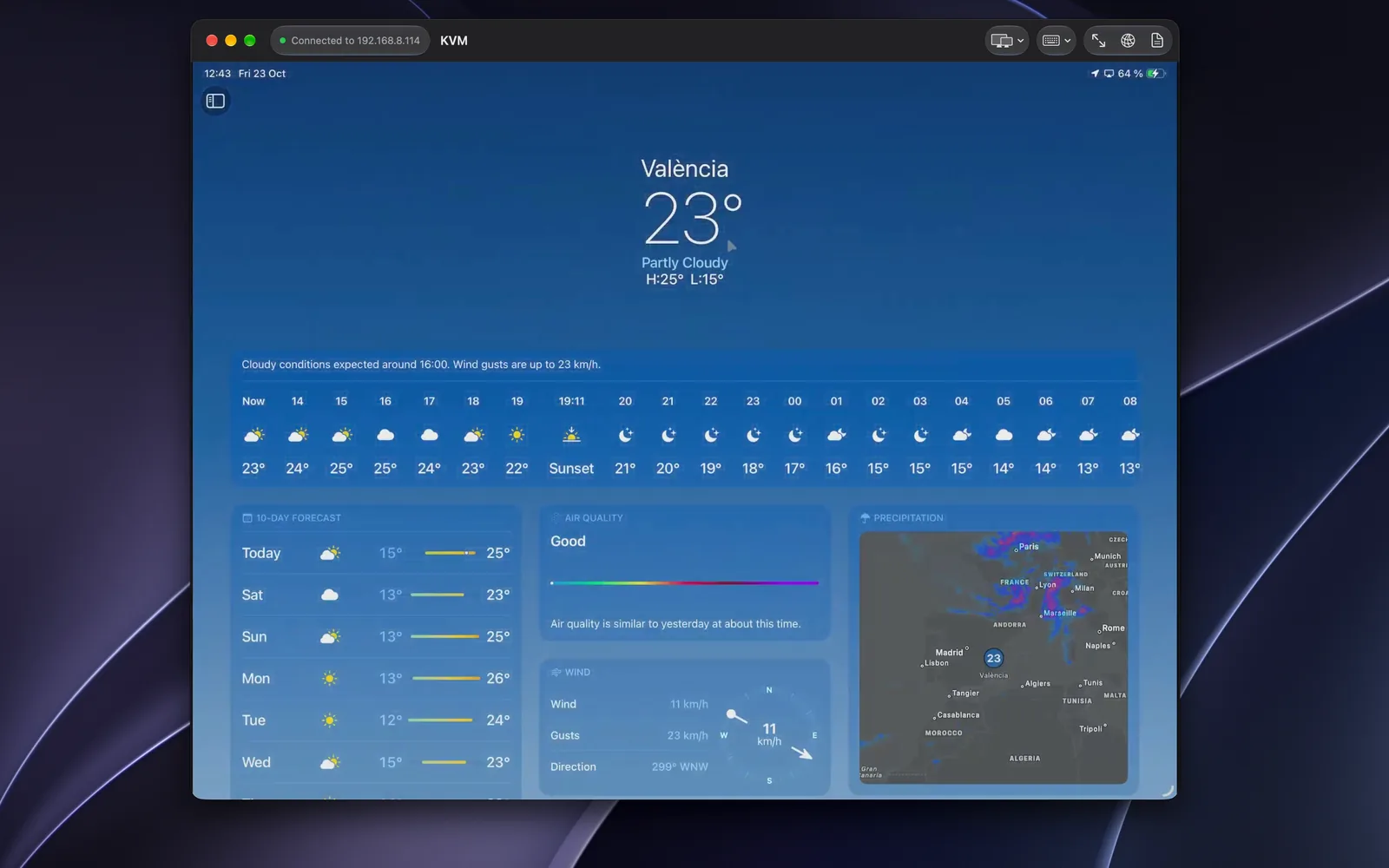
Plug an iPhone or iPad into the device and the Mac controls it too, with AssistiveTouch turned on. KVM finds where the phone’s screen sits in the picture, so clicks land on the right spot, and the window turns to landscape or portrait with the phone.

  • Menu bar item to switch the displays of the Mac it runs on
  • If the device’s display is plugged into the same Mac, nothing is sent, to avoid a loop
The Mac app controlling an iPhone in landscape
The Mac app controlling an iPad
Ideas

A board for what comes next

Post an idea, vote, comment and follow its status. Posts follow board rules you accept first; anyone can report a post or hide a person, and reports are reviewed by the developer.

Supported devices

  • NanoKVM by Sipeed: tested on a NanoKVM-Go+
  • PiKVM, GL.iNet Comet, Geekworm, TinyPilot and BliKVM: supported, not yet tested on real hardware
  • A Detect button recognizes the device type

Price

  • Free download, one purchase for iPhone, iPad and Mac
  • 7 days to try everything, once per Apple Account, nothing renews
  • After that, Direct and Drag control on the home network stay free, with no time limit
  • KVM Pro, €14.99 once: joystick, remote access, screen switching and unlock with Face ID

Privacy

No server of mine, no analytics, no ads, no tracking. Video, keyboard and mouse travel directly between your device and the KVM. Settings sync through your iCloud, passwords stay in the Keychain. Remote access goes through Tailscale, encrypted end to end.

Requirements

  • iPhone or iPad with iOS 26 or later, Mac with macOS 26 or later
  • A KVM-over-IP device plugged into the computer to control
  • App in English, French, Spanish, Italian and German

Being prepared for the App Store.

Other apps